Using Bittlebits with AI Agents Through Model Context Protocol (MCP)
Bittlebits has a Model Context Protocol (MCP) integration that lets you bring your GEO scores and rewrite suggestions directly into AI agents — whether you're using Claude Code in your terminal, Cursor or VS Code in your IDE, Codex, or an AI web app. Instead of copying content back and forth, your agent can read exactly what Bittlebits recommends and help you apply those changes, including writing them directly into your codebase.
There are three ways to connect, depending on your client and how much you want to run locally:
- Local server (stdio) — the
@bittlebits.ai/mcpnpm package. Runs on your machine over the stdio transport. Best for IDE/CLI agents and when you want a one-command guided setup. - Remote endpoint (HTTP) —
https://bittlebits.ai/mcp. Nothing to install; the server is hosted by us and you sign in through your browser. - Claude Code plugin — a thin installable wrapper around the remote endpoint for clients that consume MCP plugins.
All three expose the same tools:
| Tool | What it does |
|---|---|
get_score | Returns GEO metric scores (0–10 per dimension) for a page |
get_rewrite | Returns your original page content and a rewritten version with Bittlebits suggestions applied, plus the list of individual suggested changes |
get_url_content | Returns the original HTML and markdown of a page as fetched by Bittlebits — useful for comparing the current page to the rewritten version |
Every tool accepts either a url (full page URL) or a url_id (the Bittlebits internal ID, if you already have one). Results may take a few minutes on first run while Bittlebits fetches and processes the page.
What you can do
Once connected, you can ask your agent things like:
- "Show me what Bittlebits wants to change on this page and explain why."
- "Rewrite my homepage copy applying the Bittlebits suggestions."
- "Which metrics are weakest and what should I fix first?"
- "Help me apply suggestion #3 without changing the tone."
- "Get the score for my landing page, then find and update the file in my codebase."
1. Local server (stdio)
The @bittlebits.ai/mcp package runs the Bittlebits MCP server locally over the stdio transport. This is the recommended path for terminal and IDE agents — Claude Code, Cursor, VS Code, and Codex.
Guided setup
Run the setup command and follow the prompts:
npx @bittlebits.ai/mcp setup
This walks you through everything:
- Pick your clients — Claude Code, Cursor, VS Code, Codex (any combination). Installed clients are pre-selected.
- Choose a scope — write the config into the current project, or globally for all projects on your machine.
- Sign in — a browser window opens; log into Bittlebits and you're done. Your API key is fetched and cached locally at
~/.bittlebits/config.json. - Connected — the server entry is written into each client's config. Restart the client and start asking.
No copy-pasting keys, no hand-editing JSON. Re-running setup is safe: it merges into existing config files, preserving your other MCP servers and only updating the Bittlebits entry.
Already have an API key? Skip the browser:
npx @bittlebits.ai/mcp setup --api-key bb_your_key
The setup command also accepts client flags (--claude, --cursor, --vscode, --codex), --project / --global for scope, and -y / --yes for non-interactive runs.
Launch a session
Already ran setup? Use launch to instantly open an AI session with Bittlebits pre-loaded — no manual config needed.
npx @bittlebits.ai/mcp launch
This detects which AI clients (Claude Code, Codex) are installed on your machine and opens a session. If both are found, you'll be asked to pick one.
npx @bittlebits.ai/mcp launch [options]

  -c, --client <name>   Force a specific client: claude, codex
  -p, --prompt <text>   Send an initial prompt (non-interactive / scripted use)
Examples:
# Interactive session with auto-detected client
npx @bittlebits.ai/mcp launch

# Force Claude Code
npx @bittlebits.ai/mcp launch --client claude

# One-shot score in your terminal
npx @bittlebits.ai/mcp launch --client claude --prompt "Get the GEO score for nike.com"
Manual configuration
Prefer to wire it up yourself? Any client that supports the stdio transport works. Run npx -y @bittlebits.ai/mcp with BITTLEBITS_API_KEY set in the environment — find your key under Settings → API Keys at bittlebits.ai.
Claude Code (CLI):
claude mcp add --transport stdio bittlebits -e BITTLEBITS_API_KEY=your_key -- npx -y @bittlebits.ai/mcp
Cursor / Claude Code (.cursor/mcp.json or .mcp.json):
{
  "mcpServers": {
    "bittlebits": {
      "command": "npx",
      "args": ["-y", "@bittlebits.ai/mcp"],
      "env": { "BITTLEBITS_API_KEY": "your_key_here" }
    }
  }
}
VS Code (.vscode/mcp.json):
{
  "servers": {
    "bittlebits": {
      "type": "stdio",
      "command": "npx",
      "args": ["-y", "@bittlebits.ai/mcp"],
      "env": { "BITTLEBITS_API_KEY": "your_key_here" }
    }
  }
}
Codex (~/.codex/config.toml):
[mcp_servers.bittlebits]
command = "npx"
args = ["-y", "@bittlebits.ai/mcp"]

[mcp_servers.bittlebits.env]
BITTLEBITS_API_KEY = "your_key_here"
Prerequisites
- Node.js 18+
- A Bittlebits account
2. Remote endpoint (https://bittlebits.ai/mcp)
The remote endpoint is hosted by Bittlebits and speaks the Streamable HTTP transport with OAuth 2.0 authentication. There's nothing to install and no token to manage — the first time your client invokes a Bittlebits tool, it opens a browser window to sign in to your Bittlebits account.
Claude Code (CLI)
Run this once in your terminal:
claude mcp add --transport http bittlebits https://bittlebits.ai/mcp
The first time you invoke a Bittlebits tool, Claude Code will open your browser to complete sign-in. Claude can now pull your scores and rewrites, then find and edit the right files in your codebase directly.
Claude.ai Web App or Claude Desktop
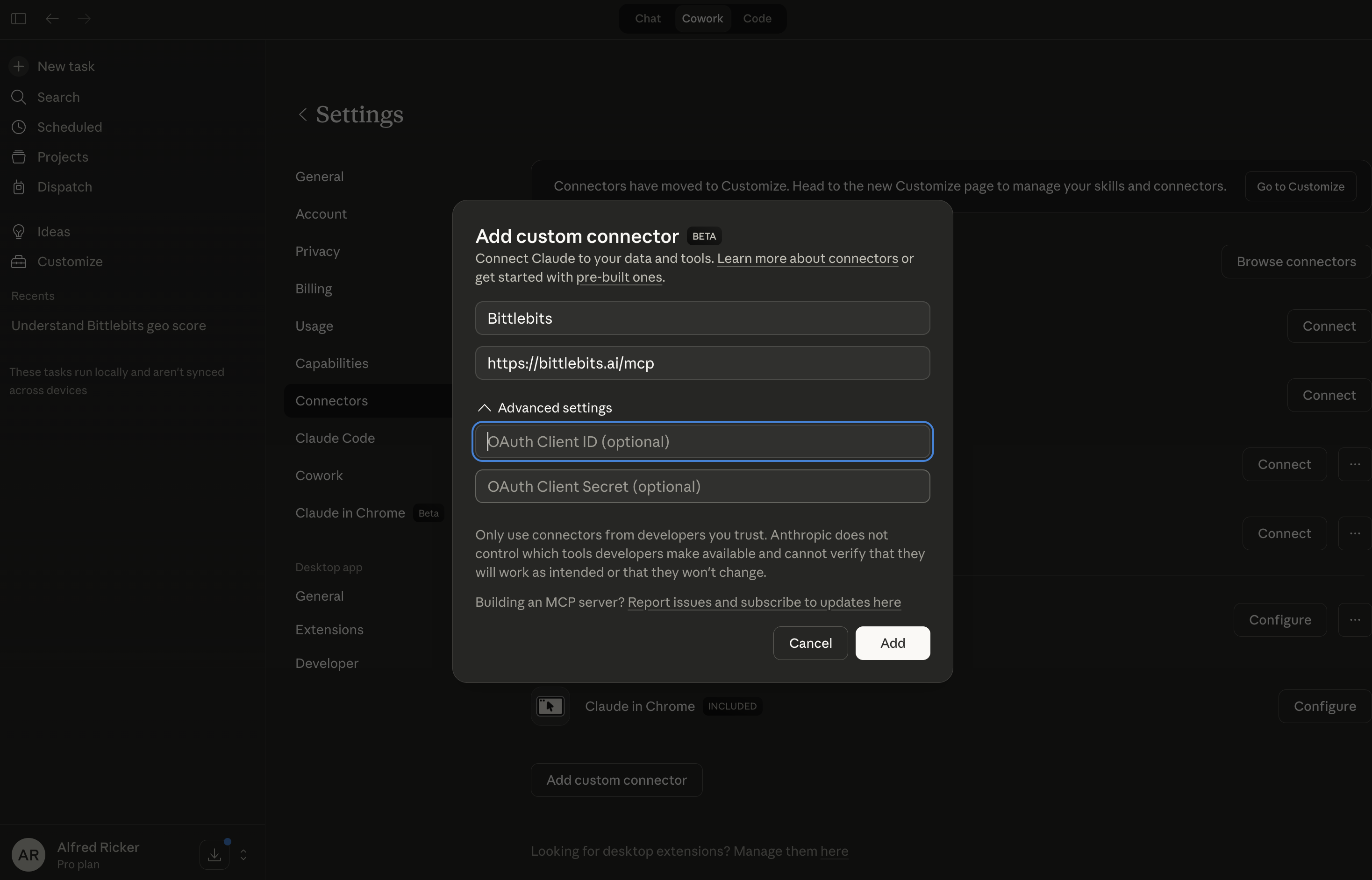
Navigate to Settings > Connectors and click Add custom connector.
- Give the MCP connection a name such as "Bittlebits"
- For Remote MCP server URL, enter
https://bittlebits.ai/mcp - Ignore the advanced settings and click
Connect. - Complete the login to establish a connection between Claude and your Bittlebits account.
Visual Studio Code
For availability across all your projects, create an mcp.json in ~/.vscode/mcp.json (macOS) or %USERPROFILE%\.vscode\mcp.json (Windows). For project-specific availability, create the mcp.json file in the .vscode directory of your project root.
{
  "servers": {
    "bittlebits": {
      "type": "http",
      "url": "https://bittlebits.ai/mcp"
    }
  }
}
Then follow the OAuth pop-up to link the MCP client to your Bittlebits account.
Other clients
Any MCP-compatible client that supports HTTP transport and OAuth 2.0 will work. Point it at https://bittlebits.ai/mcp.
3. Claude Code plugin
The bittlebits-plugin repository is an installable plugin wrapper around the remote endpoint described above. It contains a root .mcp.json that points at https://bittlebits.ai/mcp, so MCP-aware directories and clients can auto-detect the server without any manual configuration.
Because it wraps the remote HTTP endpoint, the plugin requires no local install and no API key — authentication happens through OAuth in the browser on first use, exactly like the remote endpoint.
The bundled .mcp.json is:
{
  "mcpServers": {
    "bittlebits": {
      "type": "http",
      "url": "https://bittlebits.ai/mcp"
    }
  }
}
Use the plugin when your client consumes MCP plugins or auto-detects a project's .mcp.json. If you're configuring a client by hand, prefer the remote endpoint instructions above — they're equivalent.
Start a conversation
With Bittlebits connected by any of the methods above, open a new chat and try:
"Use the Bittlebits tool to get the rewrite suggestions for example.com, then help me apply them in my codebase."
Your agent will pull the original and rewritten content from Bittlebits, analyze your codebase, and walk you through the changes on the appropriate page.
For scoring context:
"Get the scores for example.com and tell me which areas need the most improvement."
Tips
- Be specific about what to keep. If your brand voice matters, tell your agent: "Apply the suggestions but keep the casual, conversational tone."
- Work section by section on longer pages — it's easier to review that way.
- Re-score after edits. Once you've updated your page, trigger a new Bittlebits score to see how much the metrics improved.